When you have a spreadsheet ready to import business listings follow these steps -
First go and do a backup of the site in case something goes wrong (can be very easy to happen)!!
Go to your website backend
Import tab | New Import
Upload a file
Select your file from your computer
You can create NEW items or you can update EXISTING items which will update some or all the data for items currently on site
BEWARE: If you have items such as clients that you are NOT making any changes to make sure that they are NOT in the spreadsheet you are about to upload if you choose the EXISTING items as, unless you have made absolutely certain everything is correct you could muck them up! So the easiest is to just not have them included in the import
Select the type of items you are importing - here it is Businesses
Set Up Import
Drag and drop your business name and any short description for the page (eg We currently have no further information for this business)
Go to "Advanced Custom Fields Add-On" and choose Directory Listings
Map all the fields you want to import by dragging and dropping and using "Set with XPath" where needed
DO NOT complete the "Business Types/Categories" field (this will be done below)
Membership you cannot use the "Set with XP" and have to add this manually so you will need to make sure all your businesses have the same membership (usually Free for a large import)
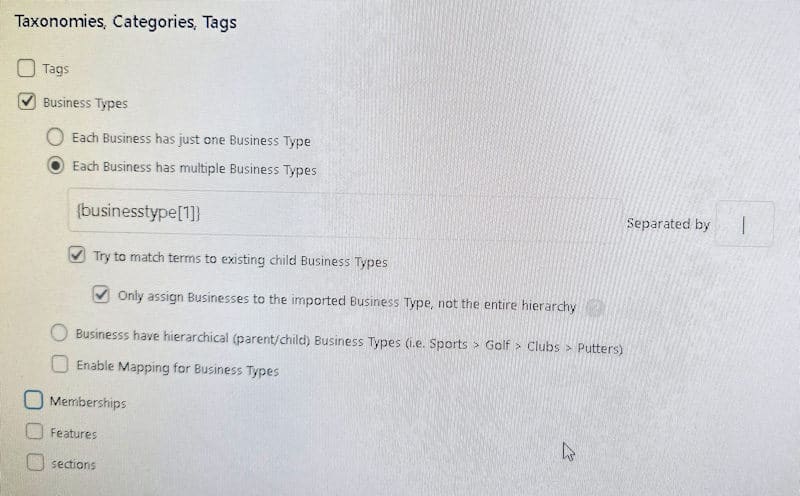
The go to "Taxonomies, Categories, Tags" tab " Business Types" and map as per the image below eg
Each business has multiple business types
Drag and drop your field from your spreadsheet
Separated by - remember to put in however you've separated (usually | or ,)
Tick try to match terms to existing child Business Types
Also tick Only assign Businesses to the imported Business Type, not the entire heirarchy
Then Preview and check all fields are working as you hope and mapping correctly
Click out of the Preview
Continue to Import Settings
In this step only choose option one if all businesses are new otherwise you will end up with duplicates
Drag and drop your Title as your unique identifier (unless you have some business names the same in which case make it an identifier that will be unique eg perhaps phone)
Under the options "For each record in this import file ..." select as follows -
If this import contains new businesses tick "Create new businesses..." also tick "Update existing businesses ..." , keep ticked "skip businesses if their data in this import has not changed" then define what data to update or just update all data. Do not tick "Remove or modify businesses that are not ..." otherwise this will DELETE ALL other business listings in your directory!! Be wary of this option.
CONTINUE
Confirm and Run Import
Then go and check all has worked. If not you can always go back to your backup.
Want locals to find your business?
We offer FREE business listings as well as affordable and effective SMART Plans to reach your targeted local audience. Check these out ...